Using Anypoint Studio to Configure Amazon S3 Connector

Nebiha
Last Update 4 år siden
Create a Mule Project
In Studio, create a new Mule project in which to add and configure the connector:
- In Studio, select File > New > Mule Project.
- Enter a name for your Mule project and click Finish.
Add the Connector to Your Mule Project
Add Amazon S3 to your Mule project to automatically populate the XML code with the connector’s namespace and schema location and to add the required dependencies to the project’s pom.xml file:
- In the Mule Palette view, click (X) Search in Exchange.
- In the Add Dependencies to Project window, type amazon s3 in the search field.
- Click Amazon S3 in Available modules.
- Click Add.
- Click Finish.
Adding a connector to a Mule project in Studio does not make that connector available to other projects in your Studio workspace.
Add a Connector Operation to the Flow
When you add a connector operation to your flow, you are specifying an action for that connector to perform.
To add an operation for Amazon S3, follow these steps:
- In the Mule Palette view, select Amazon S3 and then select the desired operation.
- Drag the operation onto the Studio canvas to the right of the source.
Configure a Global Element for the Connector
When you configure a connector, configure a global element that all instances of that connector in the app can use. Configuring a global element requires you to provide the authentication credentials that the connector requires to access the target Amazon S3 system. Amazon S3 supports basic and role authentication.
To configure the global element for Amazon S3 Connector, follow these steps:
- Select the operation in the Studio canvas.
- In the configuration screen for the operation, click the plus sign (+) next to the Connector configuration field to access the global element configuration fields.
- On the General tab, in Connection, select the authentication method to configure:
- Basic Authentication
- Role Authentication
- You can reference a configuration file that contains ANT-style property placeholders (recommended), or you can enter your authorization credentials in the global configuration properties. For information about the benefits of using property placeholders and how to configure them, see Anypoint Connector Configuration.
- On the Advanced tab, optionally specify reconnection information, including a reconnection strategy.
- Click Test Connection to confirm that Mule can connect with the specified server.
- Click OK.
Validating a connection with Test Connection requires that you have permission in AWS IAM to the action s3:ListAllMyBuckets. If you don’t have this permission, the test fails. However, you can still use the connector and the operations to which you have access.
Access to operations on Amazon S3 is further controlled through policies. It is not always possible to validate your credentials before the exact operation for which you have access completes. This can vary based on the bucket name and other parameters. For example, the test connection can fail if your credentials have a restricted policy.
Configure a Source
A source initiates a flow when a specified condition is met. You can configure one of these sources to use with Amazon S3:
On Deleted Object: Initiates access to your app when an Amazon S3 object is deleted
On New Object: Initiates access to your app when an Amazon S3 object is created
For example, to configure an On Deleted Object source, follow these steps:
- In the Mule Palette view, select Amazon S3 > On Deleted Object.
- Drag On Deleted Object to the Studio canvas.
- On the On DeBasic Authenticationleted Object configuration screen, optionally change the value of the Display Name field.
- Specify values for the following fields:
- Bucket name
- Name of the bucket containing the multipart upload to abort
- Notification queue name
- Queue name used to notify users when a new object is created or deleted in an S3 bucket
- Scheduling Strategy
- Configures the scheduler that triggers the polling
- Click the plus sign (+) next to the Connector configuration field to configure a global element that can be used by all instances of the On Deleted Object source in the app.
- On the General tab, specify the connection information for the connector.
- On the Advanced tab, optionally specify reconnection information, including a reconnection strategy.
- Click Test Connection to confirm that Mule can connect with the specified server.
- Click OK.
Basic Authentication
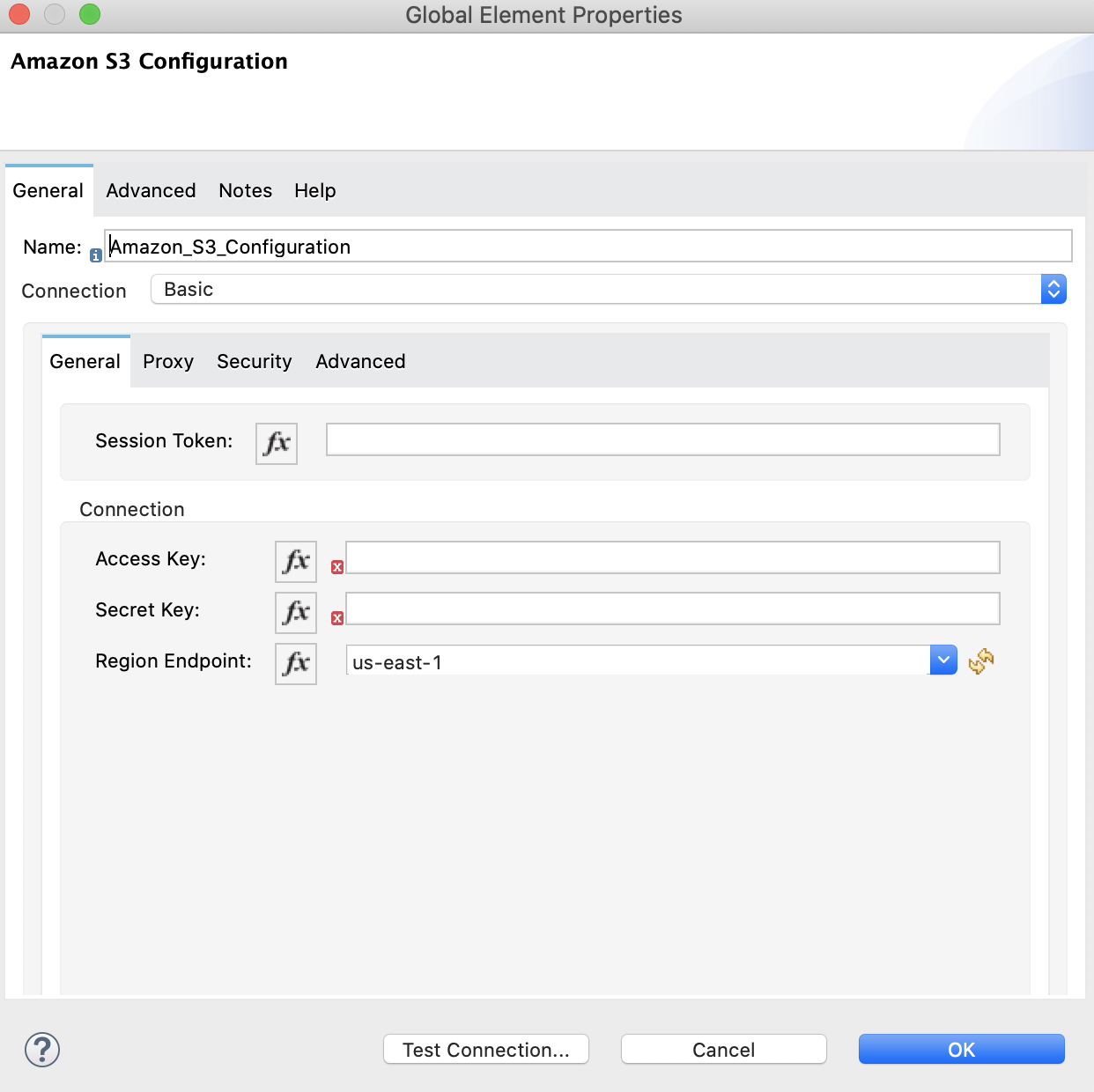
1, Enter the following information on the General tab of the Global Element Properties screen to configure Basic authentication:

2, On the Advanced tab, set the 'Try Default AWS Credentials Provider Chain' field to 'true' to obtain credentials from the AWS environment.
The following screenshot shows an example of configuring the General tab for Basic authentication:
Role Authentication
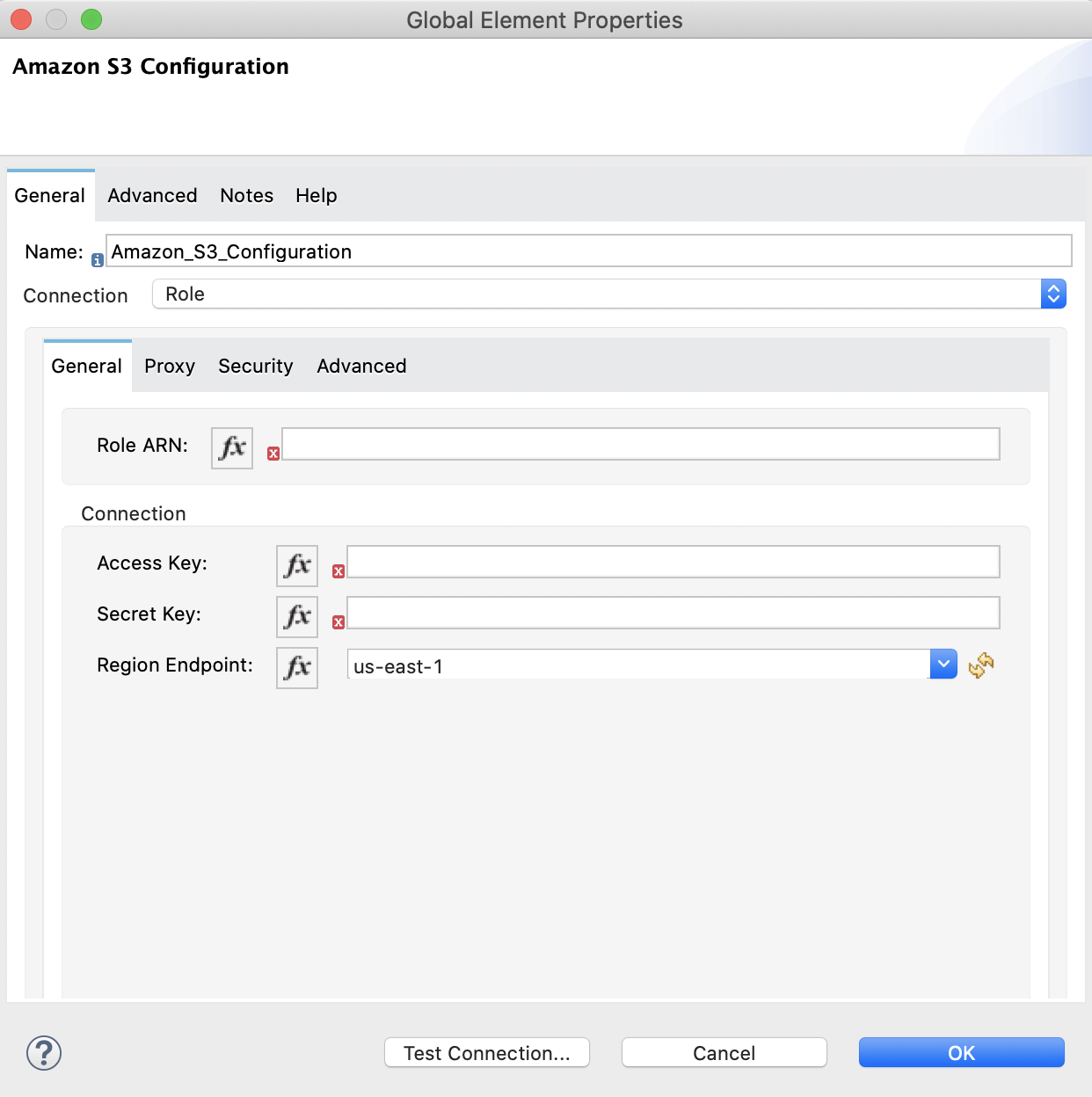
1, Enter the following information on the General tab of the Global Element Properties screen to configure Role authentication:

2, On the Advanced tab, set the 'Try Default AWS Credentials Provider Chain' field to 'true' to obtain credentials from the AWS environment.
The following screenshot shows an example of configuring the General tab for Role authentication: