
JCE Cryptography

Amir mohammed
Last Update 4 years ago
Cryptography
Cryptography is a technique of securing information and communications over a network.
The cryptography module provides cryptographic capabilities to a Mule application. Its main features include:
Symmetric encryption and decryption of messages.
Asymmetric encryption and decryption of messages.
Message signing and signature validation of signed messages.
This module supports three different strategies to encrypt and sign your messages:
PGP: Signature/encryption using PGP.
JCE: For using a wider range of cryptography capabilities as provided by the Java Cryptography Extension.
XML: For signing or encrypting XML documents or elements.
The JCE strategy enables you to use the wider range of cryptography capabilities provided by the Java Cryptography Extension.
The Java Cryptography Extension (JCE) is an officially released Standard Extension to the Java Platform and part of Java Cryptography Architecture (JCA).
JCE provides a framework and implementation for encryption, key generation and key agreement, and Message Authentication Code (MAC) algorithms.
The JCE strategy enables you to use the wider range of cryptography capabilities provided by the Java Cryptography Extension.
You can use cryptography capabilities in two ways:
Password-based encryption (PBE):
This method enables you to encrypt and sign content by providing only an encryption password.
Key-based encryption:
Similar to how PGP and XML encryption works, this method enables you to configure a symmetric or asymmetric key to perform encryption and signing operations.
You can encrypt all, or part of a message using any of these two methods.
Configure Password-Based Encryption from Anypoint Studio
1.To configure PBE from Anypoint Studio, follow these steps:
From the Mule palette, add Crypto to your project.
2. Select the desired operation, and drag the component to the flow:
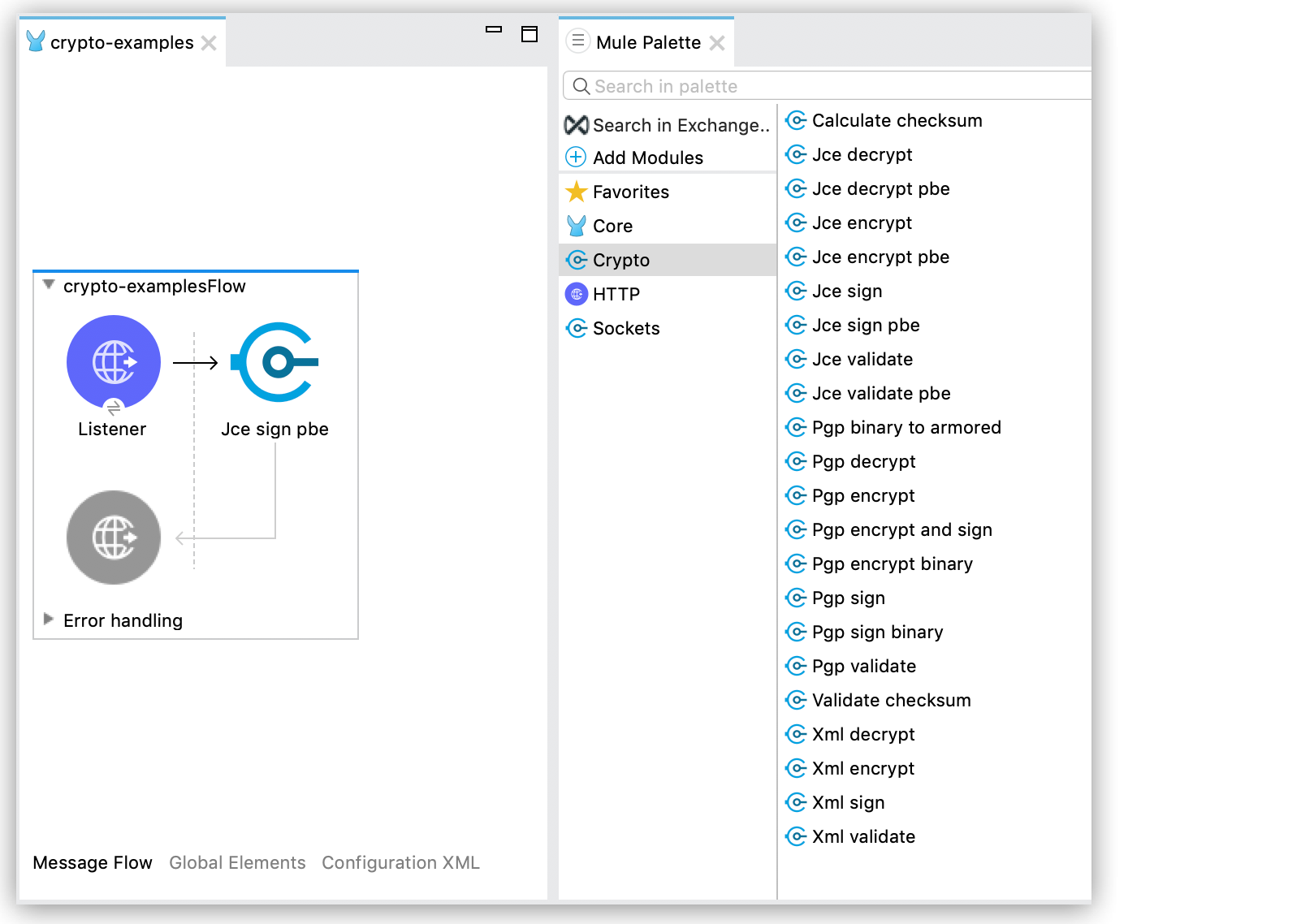
3. In the component view, configure the Algorithm and Password properties:
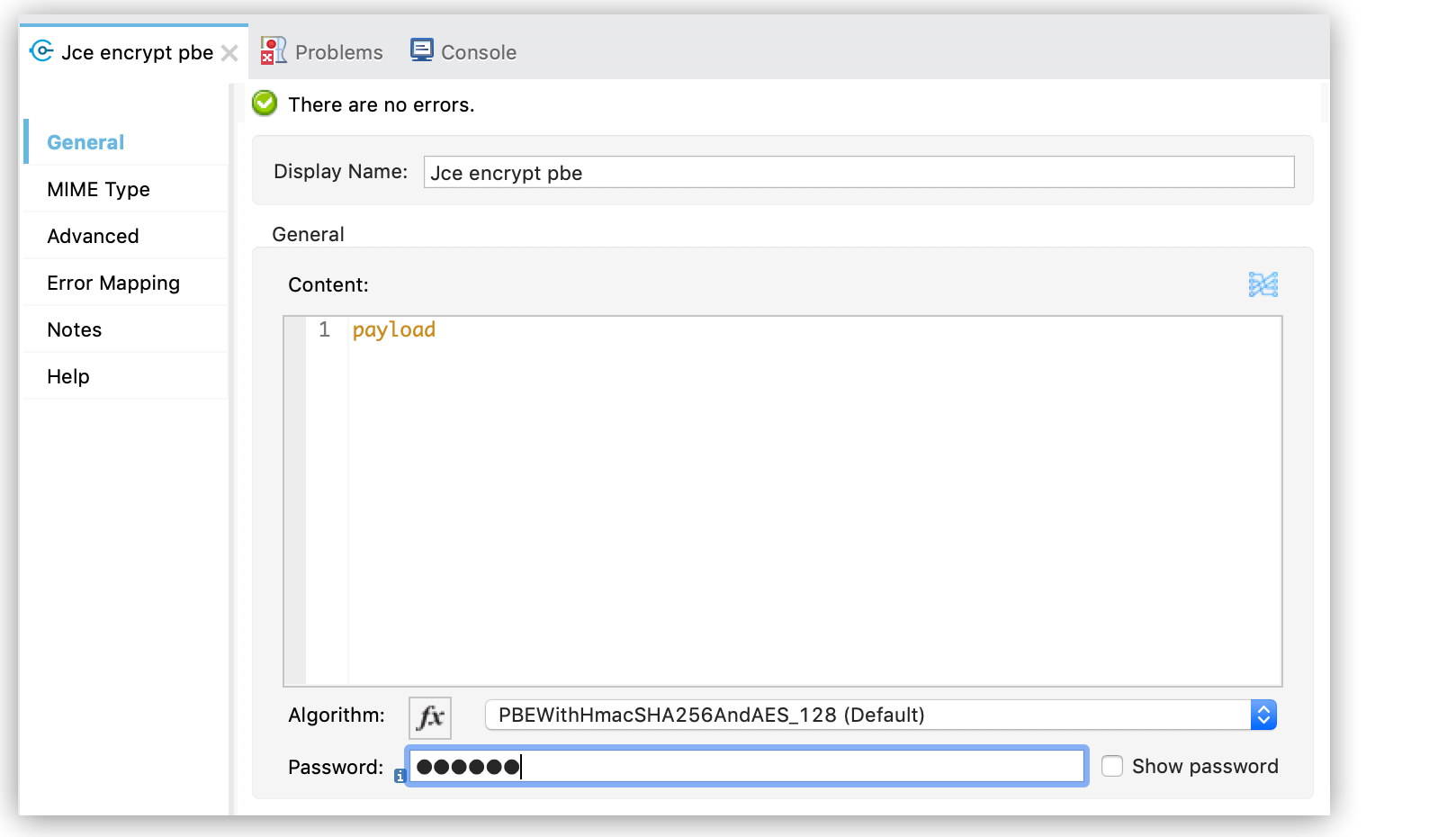
PBE Encryption
PBE Decryption
Key-Based Encryption
Configure a symmetric or asymmetric key to perform encryption and signing operations.To configure key based encryption operations from Anypoint Studio, follow these steps:
1. From the Mule palette, add Crypto to your project.
2. Select the desired operation, and drag the component to the flow:
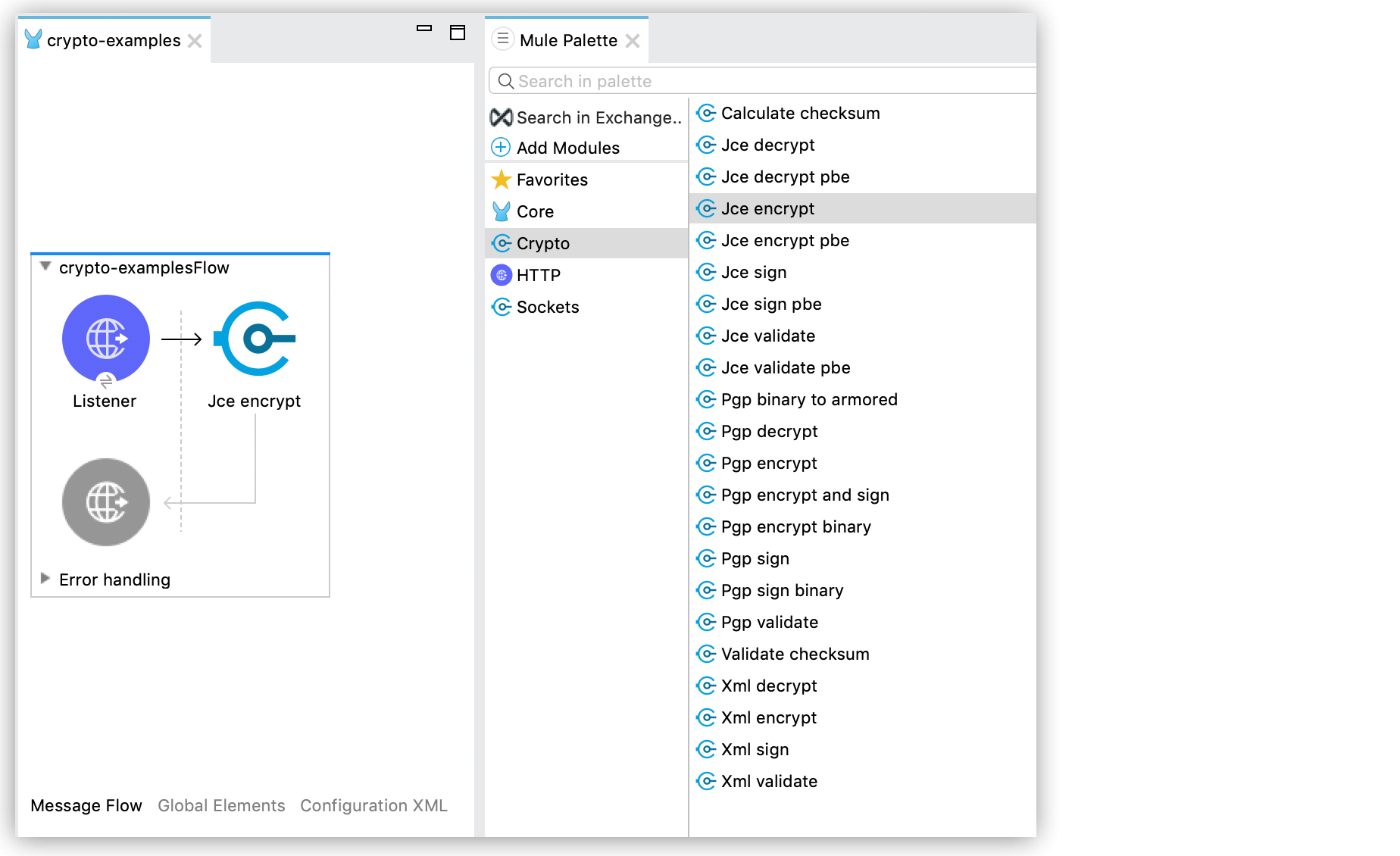
3. Open the component properties and select an existing module configuration, or create a new one by specifying values for Keystore, Type (JKS, JCEKS, PKCS12), and Password.
You can also add symmetric or asymmetric key information to be used in the sign operation
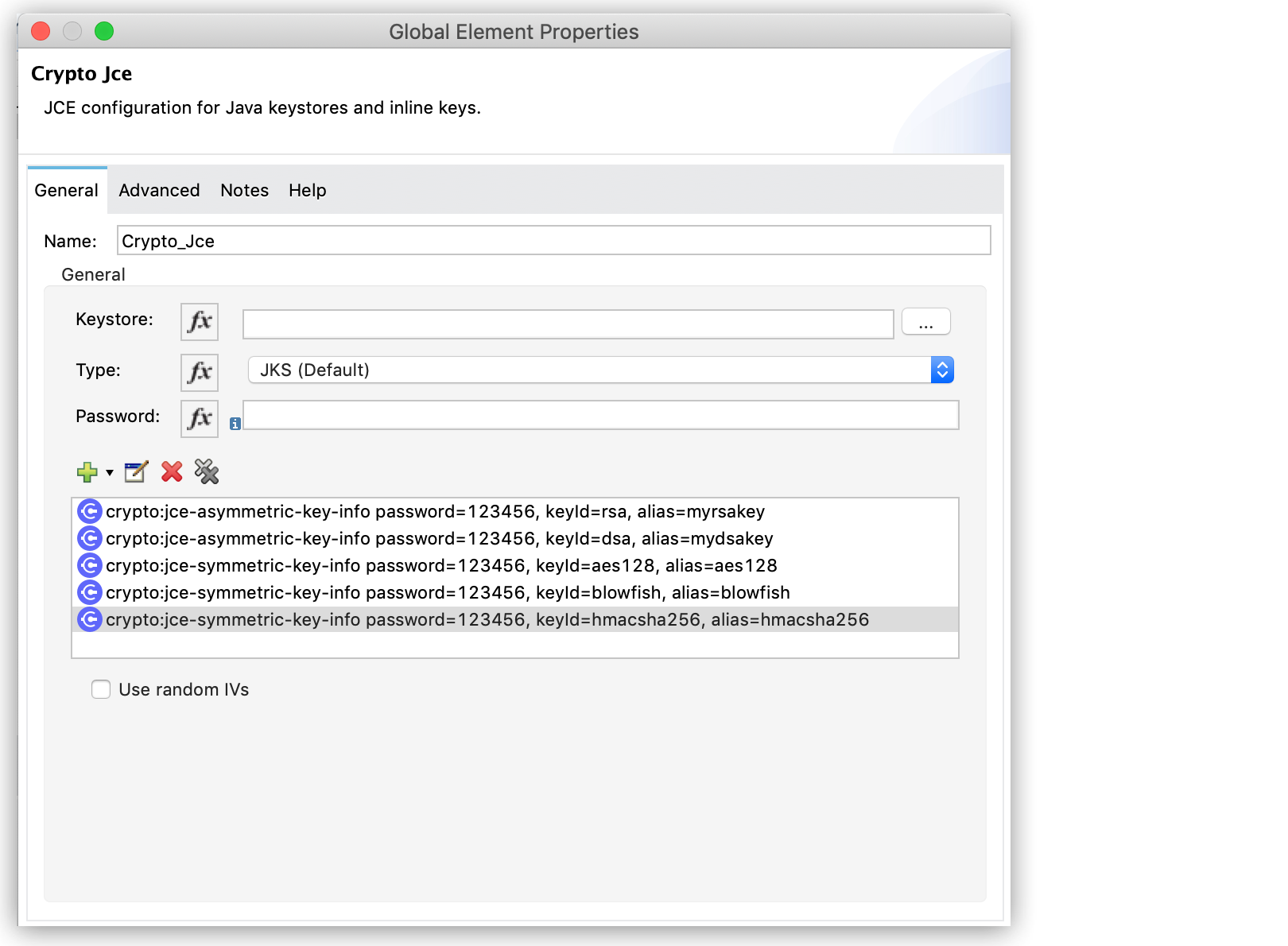
4. Configure Key selection by using a Key id value previously defined in the module configuration, or define a new one for this operation:
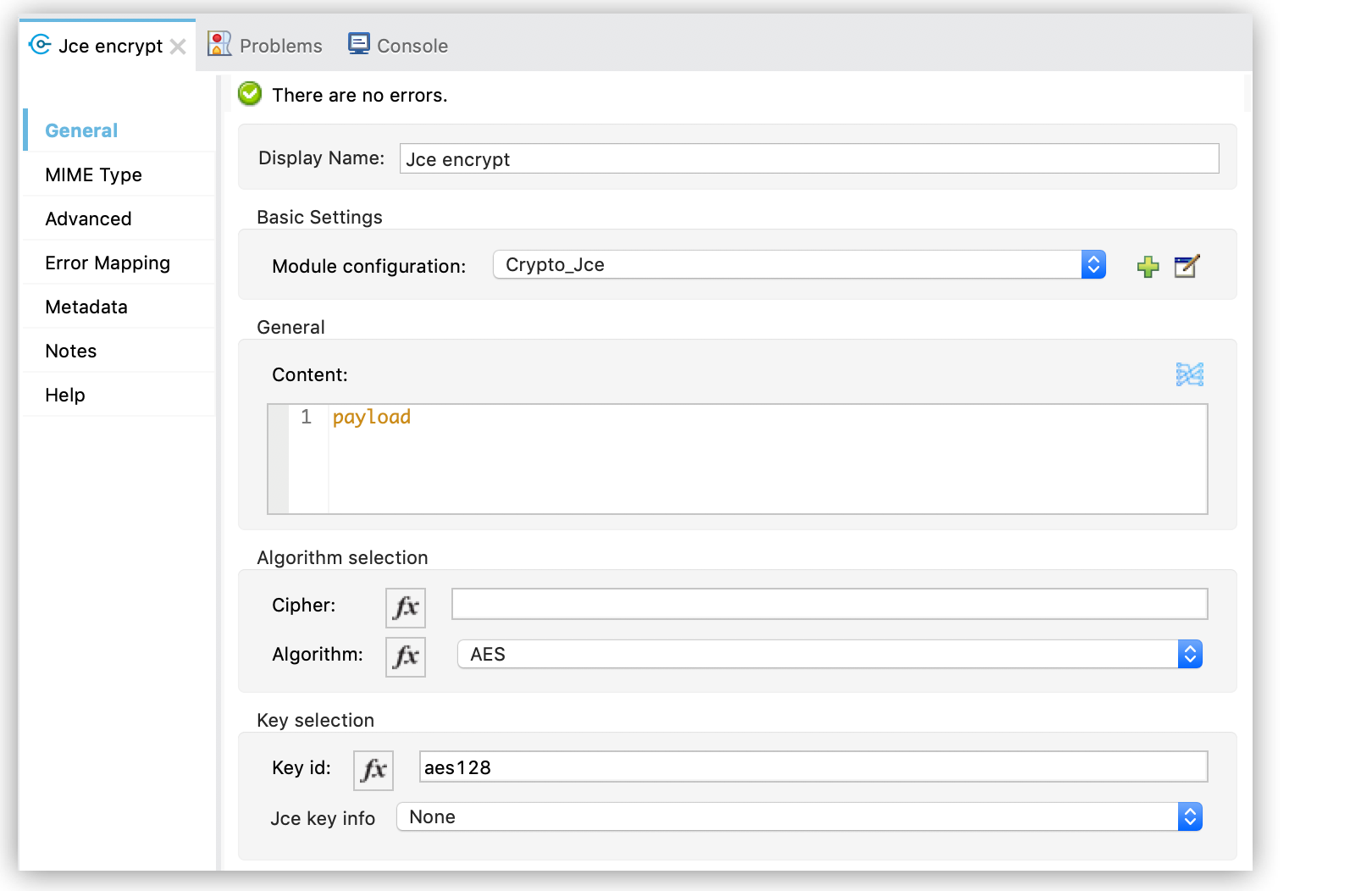
5. Select the algorithm to use during the operation.
The following XML examples show a JCE configuration that defines symmetric and asymmetric keys and different operations using these keys.
Configuration
In this example, a keystore with different types of keys is defined in a JCE configuration:
Asymmetric Encryption
The following example operations use the asymmetric keys defined in the previous configuration.
Encrypting a Message
Symmetric Encryption
The following example operations use the symmetric keys defined in the previous configuration.
Encrypting a Message